

Documentation Index
Fetch the complete documentation index at: https://docs.hookflo.com/llms.txt
Use this file to discover all available pages before exploring further.

Integration Guide
This guide will walk you through setting up a webhook integration between GitHub and Hookflo, enabling you to receive alerts for repository events like code pushes, pull requests, issues, and more.- A Hookflo account with an active project
- A GitHub account with admin access to the repository or organization you want to monitor
- Basic understanding of GitHub’s workflow and repository management
Integration Overview
The integration process follows these key steps:- Set up a webhook in Hookflo
- Configure notification channels (email/Slack)
- Connect GitHub to Hookflo
- Configure GitHub to send webhooks
- Test the integration
Setting Up Your Hookflo Webhook
After logging into Hookflo, follow these steps to create and configure your GitHub webhook:Create a Webhook
Setting Up Your Webhook Endpoint
Setting Up Your Webhook Endpoint
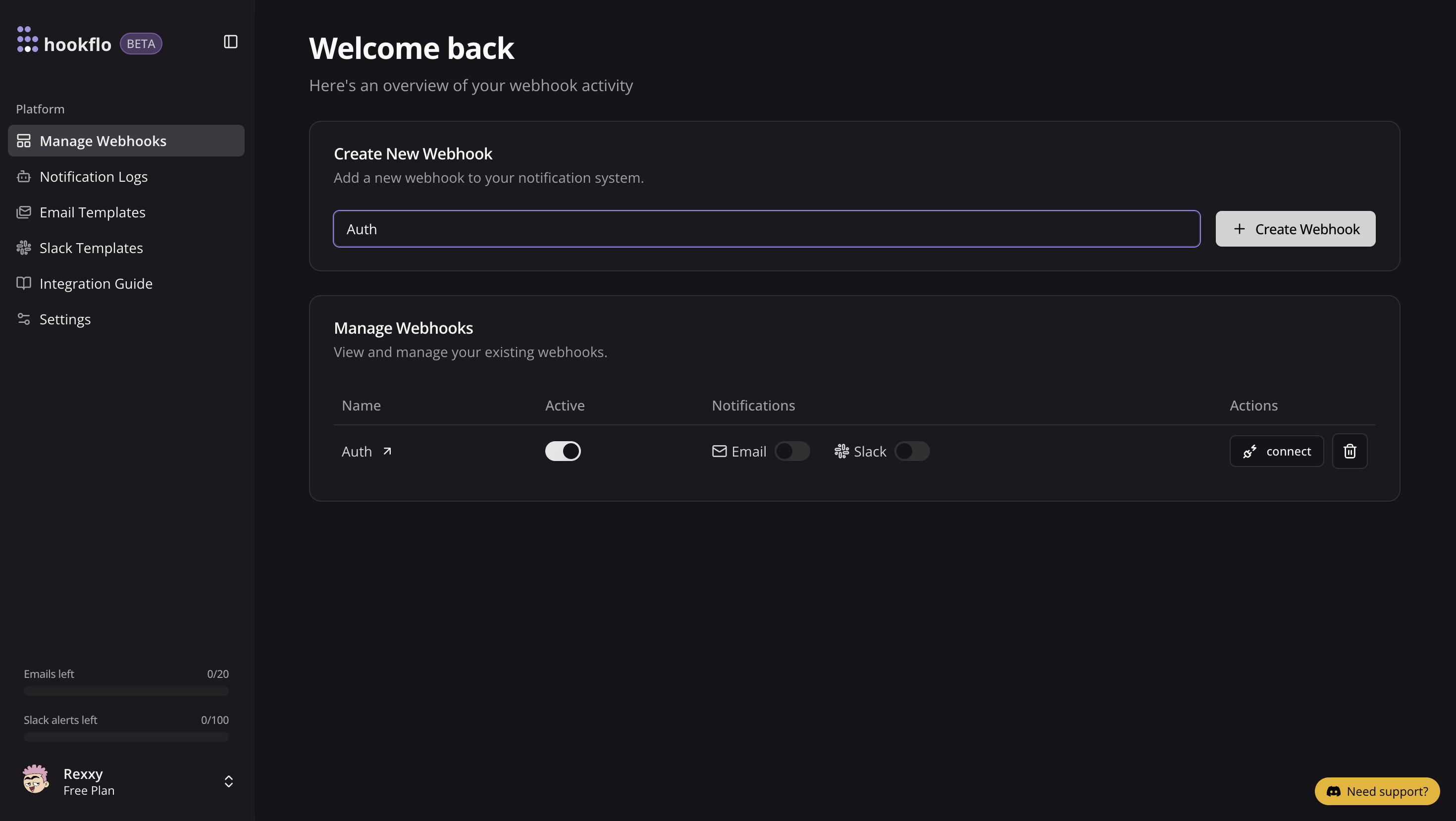
- From your Hookflo Dashboard, navigate to > Manage Webhooks
- Click on + Create Webhook
- Your webhook will be created in an inactive state by default
Setup Notification Channel
Configure Email Notifications
Configure Email Notifications
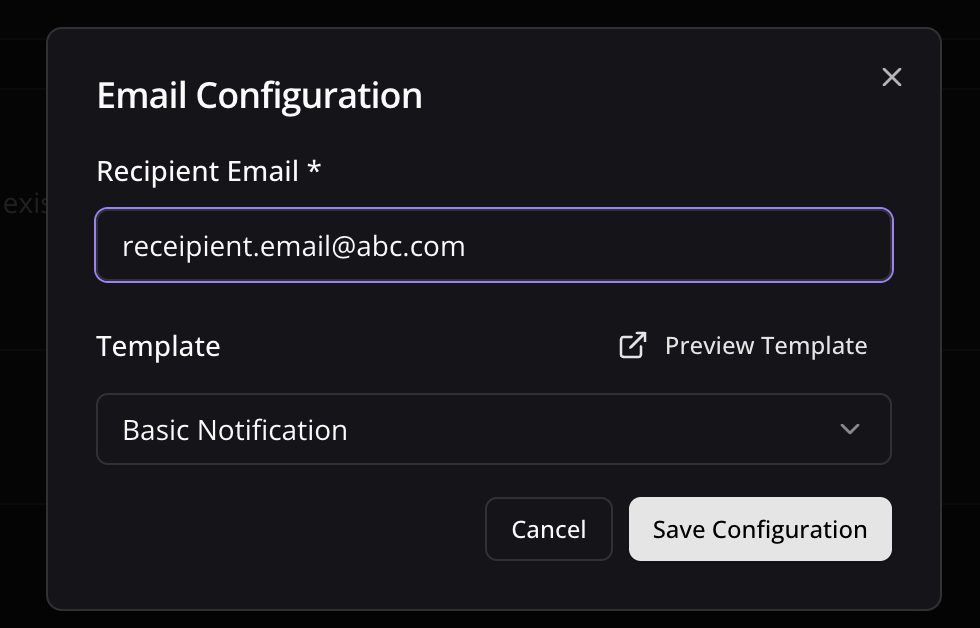
- Toggle the Email Notifications switch to enable email alerts
- In the dialog box that appears, enter the email address where you want to receive notifications
- Select an email template from the dropdown menu
- Click Preview Template to see how your notifications will look
- Use the editor to customize the template if needed
- Click Save Configuration to confirm your settings
Configure Slack Notifications
Configure Slack Notifications
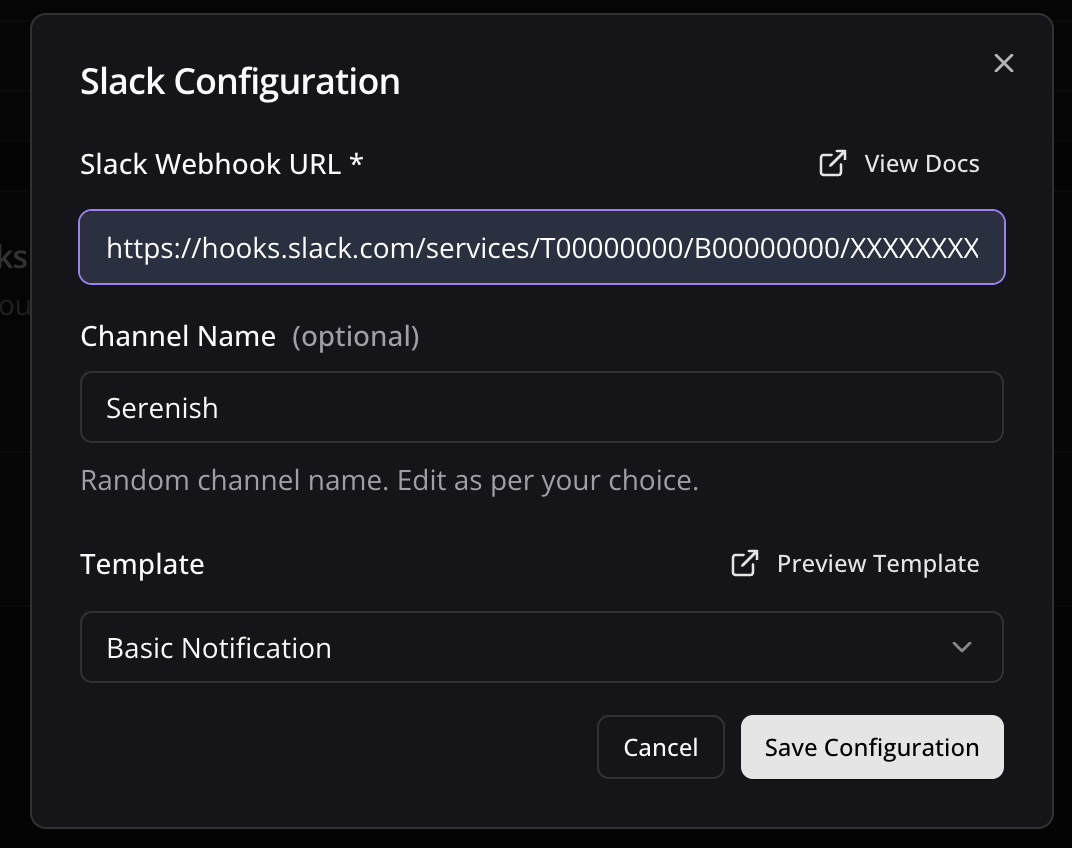
- Toggle the Slack Notifications switch to enable Slack alerts
- In the dialog box, paste your Slack webhook URL (see How to Get a Slack Webhook URL)
- Keep the randomly generated name or enter a custom one (optional)
- Select a notification template from the available options
- Preview and edit the template as needed
- Click Save Configuration to confirm your settings
Connect your Webhook with application
Configure Application
Configure Application
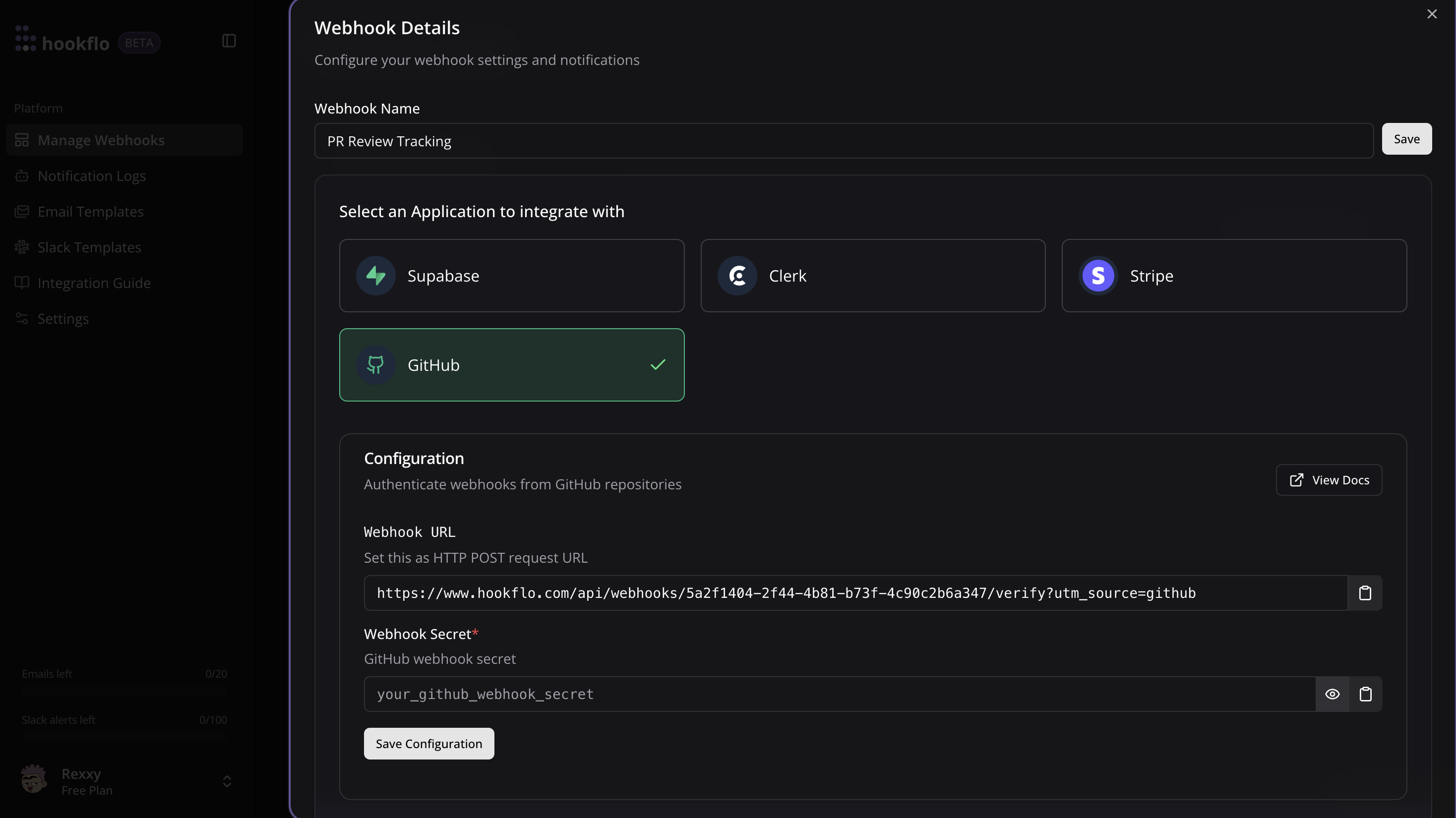
- Click the Connect button to activate your webhook
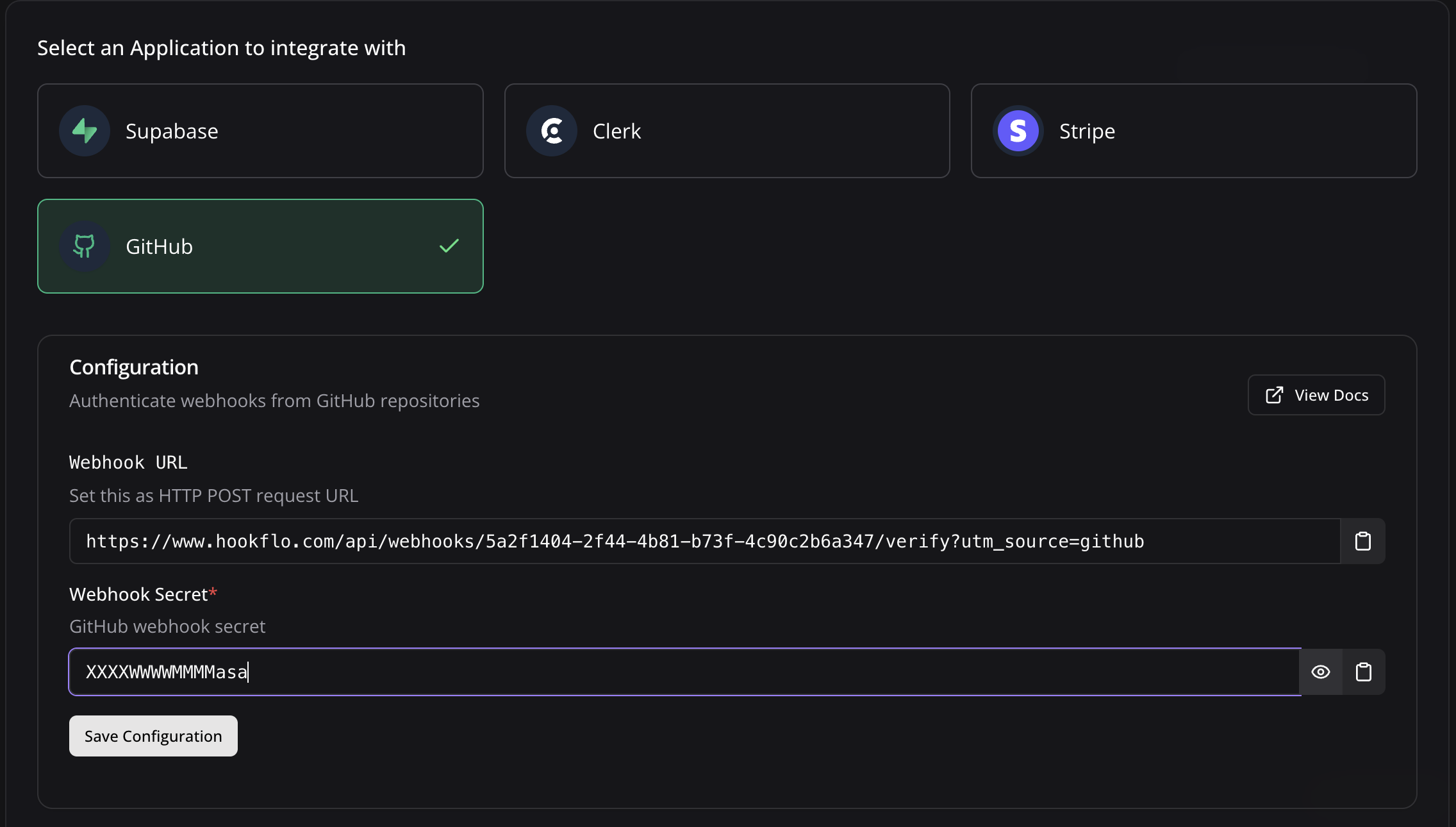
- Select GitHub as application to integrate
- A configuration panel will appear with your webhook credentials:
- Webhook URL: The HTTP POST request endpoint GitHub will send events to
- Webhook Secret: Secret for GitHub to sign webhook payloads (optional)
- Copy the Webhook URL for the next section
Configuring GitHub
Now that your HookFlo webhook is set up, you need to configure GitHub to send events to it:Configure Repository-Level Webhook
Setting Up Repository Webhooks
Setting Up Repository Webhooks
- Navigate to your GitHub repository
- Click on Settings in the top navigation bar
- Select Webhooks from the left sidebar
- Click Add webhook
- Enter your HookFlo webhook URL in the Payload URL field
- Set Content type to
application/json - Required to Enter a secret in the Secret field
- Choose which events to trigger the webhook:
- Just the push event (default)
- Send me everything
- Let me select individual events
- Check the Active checkbox to enable the webhook
- Click Add webhook to finalize
Configure Organization-Level Webhook
Setting Up Organization Webhooks
Setting Up Organization Webhooks
- Navigate to your GitHub organization
- Click on Settings in the top navigation bar
- Select Webhooks from the left sidebar
- Click Add webhook
- Enter your HookFlo webhook URL in the Payload URL field
- Set Content type to
application/json - Required to Enter a secret in the Secret field
- Choose which events to trigger the webhook:
- Just the push event (default)
- Send me everything
- Let me select individual events (including organization-specific events)
- Check the Active checkbox to enable the webhook
- Click Add webhook to finalize
Configure Webhook Secret in HookFlo
Setting Up Webhook Verification
Setting Up Webhook Verification
- Return to the HookFlo dashboard
- Navigate to your GitHub webhook configuration
- Find the “Webhook Secret” field
- Paste the same secret you entered in GitHub
- Click Save Configuration
Testing Your Integration
To ensure your integration is working properly:Test the Webhook in GitHub
Generating Test Events
Generating Test Events
- In GitHub, go to your repository or organization’s Webhooks settings
- Find your newly created webhook
- Scroll to the bottom and click Redeliver on a recent delivery, or
- Click Test to send a ping event
- Alternatively, create a real event by pushing code, opening an issue, or creating a pull request

Verify in HookFlo
Validate Alert Delivery
Validate Alert Delivery
- Return to your HookFlo dashboard
- Navigate to Notification Logs
- You should see the test events appear with details about the changes
- If you’ve configured notification channels, check your email or Slack for alerts

Supported Events
GitHub supports a wide range of webhook events. Here are the most commonly used categories:Code Events
push: When code is pushed to a repositorycommit_comment: When a commit is commented oncreate: When a branch or tag is createddelete: When a branch or tag is deletedrelease: When a release is published, updated, or deleted
Pull Request Events
pull_request: When a pull request is opened, closed, assigned, labeled, etc.pull_request_review: When a review is submitted, edited, or dismissedpull_request_review_comment: When a comment is made on a pull request diffpull_request_review_thread: When a thread in a pull request review is resolved or unresolved
Issue Events
issues: When an issue is opened, closed, assigned, labeled, etc.issue_comment: When a comment is made on an issue or pull requestlabel: When a label is created, edited, or deleted
Repository Events
repository: When a repository is created, archived, unarchived, etc.repository_import: When a repository import is completed, canceled, or failedrepository_vulnerability_alert: When a security vulnerability alert is created, dismissed, or resolved
GitHub Actions Events
workflow_job: When a workflow job is queued, completed, or failedworkflow_run: When a workflow run is completed
Organization Events
organization: When an organization is deleted, renamed, or a user is added or removedorganization_package: When a package is published or updatedteam: When a team is created, deleted, or modifiedteam_add: When a repository is added to a team
Webhook Headers
GitHub webhooks include these important headers that HookFlo uses for verification:X-GitHub-Event: The type of event (e.g.,push,pull_request)X-GitHub-Delivery: A unique identifier for the deliveryX-Hub-Signature-256: HMAC SHA-256 signature of the payload (if secret configured)
Webhook Payload Structure
Here’s an example of what the webhook payload looks like for apush event:
Advanced Configuration
Customizing Notification Templates
Customizing Notification Templates
Filtering Events
Filtering Events
- Go to Alert Rules → Create Rule
- Source: Your GitHub webhook
-
Add conditions like:
- Only alert on pull requests to the main branch:
- Only alert on failed workflow runs:
- Configure your notification channel and template
- Save the rule
Example: Pull Request Review Alerts via Slack
Let’s set up a complete example of notifying your team when pull requests need review:Configure GitHub Webhook
- Follow the steps above to create a repository webhook in GitHub
- When selecting events, choose Let me select individual events
- Select the following events:
Pull request reviewsPull requests
- Set up a secret and add it to both GitHub and HookFlo
Example: Critical Issue Alerts via Email
Set up alerts when issues are labeled as “critical” or “bug”:Configure GitHub Webhook
- Follow the steps above to create a repository webhook in GitHub
- When selecting events, choose Let me select individual events
- Select the
Issuesevent - Set up a secret and add it to both GitHub and HookFlo
Troubleshooting
Webhook Verification Failures
Webhook Verification Failures
- Double-check that you’ve entered the exact same secret in both GitHub and HookFlo
- Ensure there are no extra spaces or special characters in your secret
- Verify that the Content-Type in GitHub is set to
application/json - Check if you’re using the correct HookFlo webhook URL
Missing Events
Missing Events
- In GitHub, go to your webhook settings and check the “Recent Deliveries” tab
- Look for any failed deliveries and check their response codes
- Verify that you’ve selected the specific event types in GitHub’s webhook configuration
- Check your HookFlo webhook logs to see if events are being received but filtered out
- For organization webhooks, ensure the repository is included in the webhook scope
Webhook Timeouts
Webhook Timeouts
- GitHub expects a response within 10 seconds or it will mark the delivery as failed
- GitHub will retry failed webhook deliveries up to 3 times
- Check if your HookFlo webhook is processing events efficiently
- Consider implementing asynchronous processing for complex event handling
Security Considerations
When setting up webhook integrations between GitHub and HookFlo, keep these security best practices in mind:- Always use a webhook secret: This prevents unauthorized requests to your webhook endpoint
- Validate all webhook signatures: HookFlo does this automatically when you provide your secret
- Limit the scopes of your webhooks: Only subscribe to events you actually need
- Use HTTPS only: All webhook URLs should use encrypted connections
- Regularly audit webhook configurations: Remove unused or outdated webhooks
- Be careful with sensitive data: Consider what information is included in your notifications
- Monitor webhook activity: Regularly review webhook events for suspicious patterns